
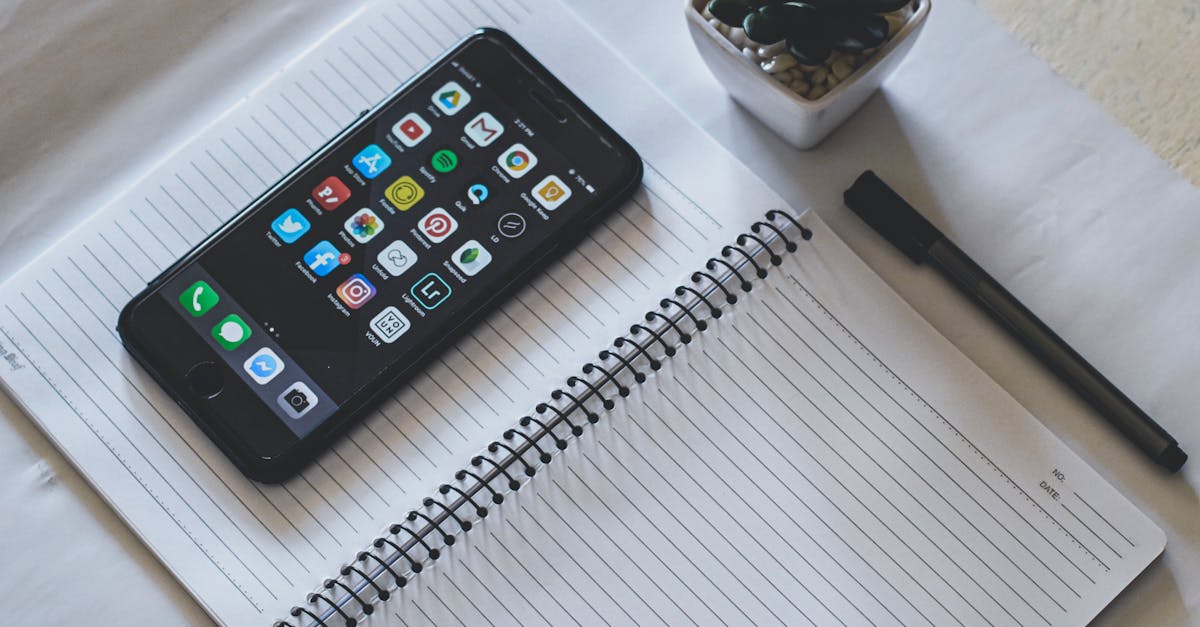
Is your iPhone cluttered with apps you never use? Those forgotten games and outdated social media platforms can feel like digital dust bunnies, taking up precious storage space. It’s time to reclaim your device and make room for the apps that truly matter—like that one that helps you find the nearest pizza joint!
Table of Contents
ToggleUnderstanding App Deletion
Deleting unused apps from an iPhone enhances device performance and frees up storage space. Managing apps contributes to an organized and efficient device.
Importance of Managing Storage
Managing storage ensures a smooth user experience on an iPhone. Limited storage capacity can lead to slow performance and issues with app functionality. Users benefit from regularly checking their available storage. Identifying and removing unnecessary apps allows for more space for essential applications and updates. Additionally, keeping storage in check optimizes overall device speed. Routine management of the app collection simplifies navigation and improves general usability.
Consequences of Deleting Apps
Deleting apps can lead to loss of data associated with those applications. Users might lose saved documents, game progress, or personalized settings that won’t be recoverable. Some apps can house important information that can’t easily be retrieved after deletion. In addition to losing data, users might experience a temporary disruption in workflow until alternative apps are set up. On the positive side, removing unwanted apps can clear clutter, enhancing user focus on necessary tools. Prioritizing essential applications ultimately streamlines the iPhone experience.
Methods to Delete Apps Off of iPhone
Deleting apps on an iPhone can streamline device performance and optimize storage. Users can choose from multiple methods to remove unwanted applications.
Using the Home Screen
To delete an app directly from the home screen, users can tap and hold the app icon until options appear. Selecting “Remove App” allows for quick action. After that, choosing “Delete App” confirms the removal. Confirmations may vary, as some devices prompt a second confirmation step. This method’s speed makes it convenient for quick decluttering.
Through Settings
Accessing the Settings app provides another way to delete apps. Users should navigate to General, then select iPhone Storage. A list of apps appears, organized by storage usage. Tapping on an app displays its details, including options for deletion. Proceeding with “Delete App” removes it from the device entirely. This method offers a comprehensive overview, allowing users to manage storage effectively.
Alternative Approaches
In addition to the previously mentioned methods for deleting apps, alternative approaches provide user-friendly options for managing applications on an iPhone.
Offloading Apps
Offloading apps allows users to free up storage without losing associated data. The process involves going to Settings, selecting General, and then choosing iPhone Storage. From there, users can tap on an app and select “Offload App.” This action removes the app but keeps its documents and data. Users can reinstall the app later without losing any saved information. The option proves beneficial for applications rarely used yet containing important data, with quick access available when needed. Keeping apps without the clutter helps maintain a streamlined device and efficiently manages space.
Using the App Store
Users can also delete apps directly through the App Store. By launching the App Store and tapping on their profile icon, a user can scroll down to see all purchased apps. Unwanted applications are then easily located. Tapping the cloud icon next to an app reveals a confirmation option for deletion. This approach provides convenience and encourages users to review their app collection regularly, leading to a more efficient device. Regularly checking installed apps via the App Store ensures that users maintain only those necessary for their day-to-day activities.
Tips for Efficient App Management
Efficient app management enhances iPhone functionality and minimizes clutter. Users benefit from adopting strategies for better organization.
Regularly Review Installed Apps
Regular reviews of installed apps help maintain a streamlined device. Scheduling monthly evaluations can reveal unused apps that occupy valuable storage. It’s crucial to identify apps that haven’t been accessed in weeks or even months. Deleting these apps permits space for more useful tools. Deleting unnecessary apps improves overall device performance and keeps the home screen organized. Engaging with this practice establishes a habit of mindful app management.
Utilize Folders for Organization
Organizing apps into folders simplifies navigation. Creating folders for specific categories, such as productivity, entertainment, or social media, enhances accessibility. Grouping similar apps reduces clutter on the home screen, providing a cleaner appearance. Users can name folders based on their function to streamline access further. Dragging and dropping apps into folders maximizes space and creates an efficient user experience. With organized folders, finding necessary apps becomes quick and intuitive.
Deleting unused apps from an iPhone is a simple yet effective way to optimize device performance and free up valuable storage space. By regularly assessing app usage and removing unnecessary applications, users can enhance their overall experience and streamline their devices.
Utilizing methods like offloading apps or organizing them into folders can further improve accessibility and reduce clutter. A well-managed app collection not only boosts efficiency but also allows for smoother navigation and quicker access to essential tools. Embracing these practices can lead to a more organized and enjoyable iPhone experience.